How it works
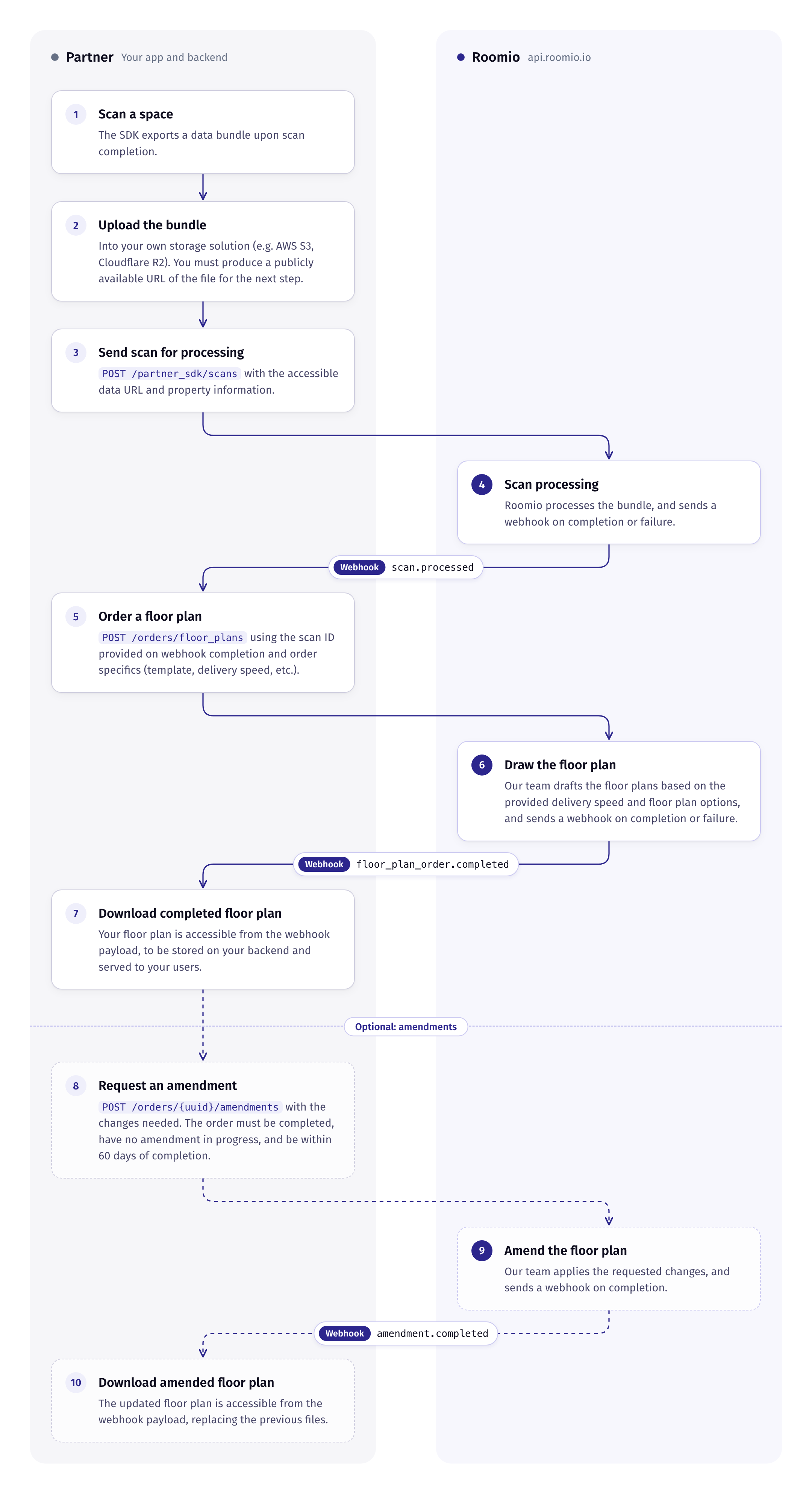
Your app scans a space with the Roomio SDK. Your backend sends the scan to Roomio and orders a floor plan from it.
The Partner SDK is activated on request. Contact support@roomio.io to get set up.
Overview
The Roomio SDK adds Roomio's scanning to your own iOS and Android app. Your users scan a home with their phone, inside your app and under your brand, and Roomio's team turns each scan into a professional floor plan drawn to your templates.
You build the scan screen with the SDK, store the scan files, and make two API calls from your backend: one to send a scan, and one to order a floor plan. The Roomio API reference has every endpoint. Roomio tells your backend by webhook when each step is done, and delivers the finished floor plan the same way.
Floor plans are billed monthly. Each order goes on your account, and the month's orders are invoiced together at the start of the next month.
Before you start
Keys and webhooks
Create two keys in the API Keys section of the Roomio portal:
- a publishable key for your app, which the SDK uses to identify you
- a secret key for your backend, used for every API call below. Never put it in your app.
Then add a webhook endpoint in the Webhooks section. Roomio calls it when a scan is processed, a floor plan is completed and an amendment is completed. See the webhooks documentation.
Billing
Save a payment method under Monthly billing in the Roomio portal. You are billed monthly for each floor plan you order.
Monthly billing is activated on request. Contact support@roomio.io to get set up.
1. Scan a space
Your app runs the scan with the SDK. When the scan is complete, the SDK packages everything into one encrypted file, the bundle. See the Quickstart.
| The SDK | Your app |
|---|---|
| Runs the camera and tracking | Decides when to offer a scan |
| Shows the camera, the scan as it builds, onboarding, guidance, and the buttons to complete or exit the scan | Places any of its own controls over the scan view |
| Reports state, progress and errors | Starts the session, follows its state and closes it |
| Packages and encrypts the bundle | Uploads the bundle |
2. Upload the bundle
Upload the bundle, unchanged, to your own storage, somewhere Roomio can download it from: an https link that needs no login or header, such as an S3 presigned URL. See Export and upload.
3. Send the scan for processing
From your backend, send the bundle to Roomio with your secret key.
POST https://api.roomio.io/partner_sdk/scans
| Field | Required | Description |
|---|---|---|
bundle_url |
yes | The link to the bundle |
property |
yes | The property: street_address, suburb, state, postcode, country, latitude, longitude, title. Site plans use it to find satellite imagery. |
reference |
no | Your own reference for this scan, such as a job ID. Up to 255 characters. Roomio returns it to you and never uses it, so you can match the scan to your own records. |
curl https://api.roomio.io/partner_sdk/scans \
  -H "Authorization: Bearer $ROOMIO_SECRET_KEY" \
  -H "Content-Type: application/json" \
  -d '{
    "bundle_url": "https://your-bucket.s3.amazonaws.com/scans/123?X-Amz-Signature=…",
    "property": {
      "street_address": "12 Example Street",
      "suburb": "Richmond",
      "state": "VIC",
      "postcode": "3121",
      "country": "Australia"
    },
    "reference": "job-8841"
  }'
Roomio answers 202 Accepted with the scan, including its uuid.
4. Scan processing
Roomio downloads the bundle and processes it, then sends one of two webhook events:
scan.processed: the scan is ready to order from.scan.failed: Roomio could not use the bundle. Check the link and send the scan again.
Android is in beta. You can build and test your Android integration, but Roomio doesn't process Android scans yet: sending one returns scan.failed. Processing is coming in the next few weeks.
See all webhook events and payloads.
5. Order a floor plan
POST https://api.roomio.io/orders/floor_plans
| Field | Required | Description |
|---|---|---|
scan_uuid |
yes | The scan to draw |
template_uuids |
yes | 1 to 5 templates, preferred first. GET /templates lists yours |
delivery.email |
yes | Where the finished floor plan is sent |
delivery.first_name |
yes | The name the email is addressed to |
measurement_unit |
no | metric or imperial |
title |
no | Defaults to the property's title |
notes |
no | Anything the drafter should know |
reference |
no | Your own reference for this order. Defaults to the scan's reference |
curl https://api.roomio.io/orders/floor_plans \
  -H "Authorization: Bearer $ROOMIO_SECRET_KEY" \
  -H "Content-Type: application/json" \
  -d '{
    "scan_uuid": "<scan uuid>",
    "template_uuids": ["<template uuid>"],
    "delivery": { "email": "agent@example.com", "first_name": "Sam" }
  }'
Roomio answers 201 Created with the order, including its uuid. The order is added to your monthly invoice.
6. Draw the floor plan
Roomio's team draws the floor plan to your templates and options.
7. Download the floor plan
Roomio sends floor_plan_order.completed. Its floor_plans list has a url, format and filename for each file. Download them when the webhook arrives. You can also get them with GET /orders/{uuid}.
Optional: amendments
If a completed floor plan needs changes, you can ask Roomio to amend it.
8. Request an amendment
POST https://api.roomio.io/orders/{uuid}/amendments
The order must be completed, have no amendment in progress, and be within 60 days of completion.
| Field | Required | Description |
|---|---|---|
instructions |
yes | What should change, 10 to 1000 characters |
supporting_files[] |
no | Images or PDFs that show the change |
curl https://api.roomio.io/orders/<order uuid>/amendments \
  -H "Authorization: Bearer $ROOMIO_SECRET_KEY" \
  -F "instructions=The garage is missing from the ground floor." \
  -F "supporting_files[]=@sketch.png"
9. Amend the floor plan
Roomio's team applies the changes and sends amendment.completed.
10. Download the amended floor plan
The amendment.completed payload has the updated floor_plans, in the same shape as floor_plan_order.completed. The new files replace the previous ones, and the old links stop working.
Q&A
Do my users need a Roomio account?
No. They scan inside your app, and every scan and order belongs to your company's account.
Where can I see my users' scans and orders?
In your company's Roomio account. Your owners and admins see every scan and order in the Roomio portal, under Scans and Orders, and your backend can list them with GET /scans and GET /orders. Orders show as placed by the person who created your secret key.
How do I match Roomio's records to mine?
Send your own reference, such as a job or customer ID, when you create a scan or an order. An order without one takes its scan's reference. Roomio returns it on every scan and order, in GET /scans, GET /orders and every webhook, and you can look records up with GET /scans?reference=… and GET /orders?reference=….
The reference is for you. Roomio stores it and returns it, but never reads or uses it, and it does not need to be unique.
How am I billed?
You pay per floor plan, when you order it. Scanning and processing are free. On the 1st of each month, Roomio raises one invoice for the previous month's orders, with one line per product, and emails it to your company's owners and admins.
When is my card charged?
About 12 hours after the invoice is raised, to the card saved on your account.
What happens if the charge fails?
Roomio emails you and retries automatically. If you save a new card, it is charged straight away for what is owed.
Where are my invoices?
In the Roomio portal, under Billing.
Can I change a floor plan after it is delivered?
Yes, for up to 60 days after the order is completed. See Optional: amendments.
Which devices are supported?
iPhone on iOS 17 or later, and Android 7.0 or later on an ARCore-supported phone with a 64-bit processor. No LiDAR sensor is needed. Android is in beta, and Roomio doesn't process Android scans yet.